

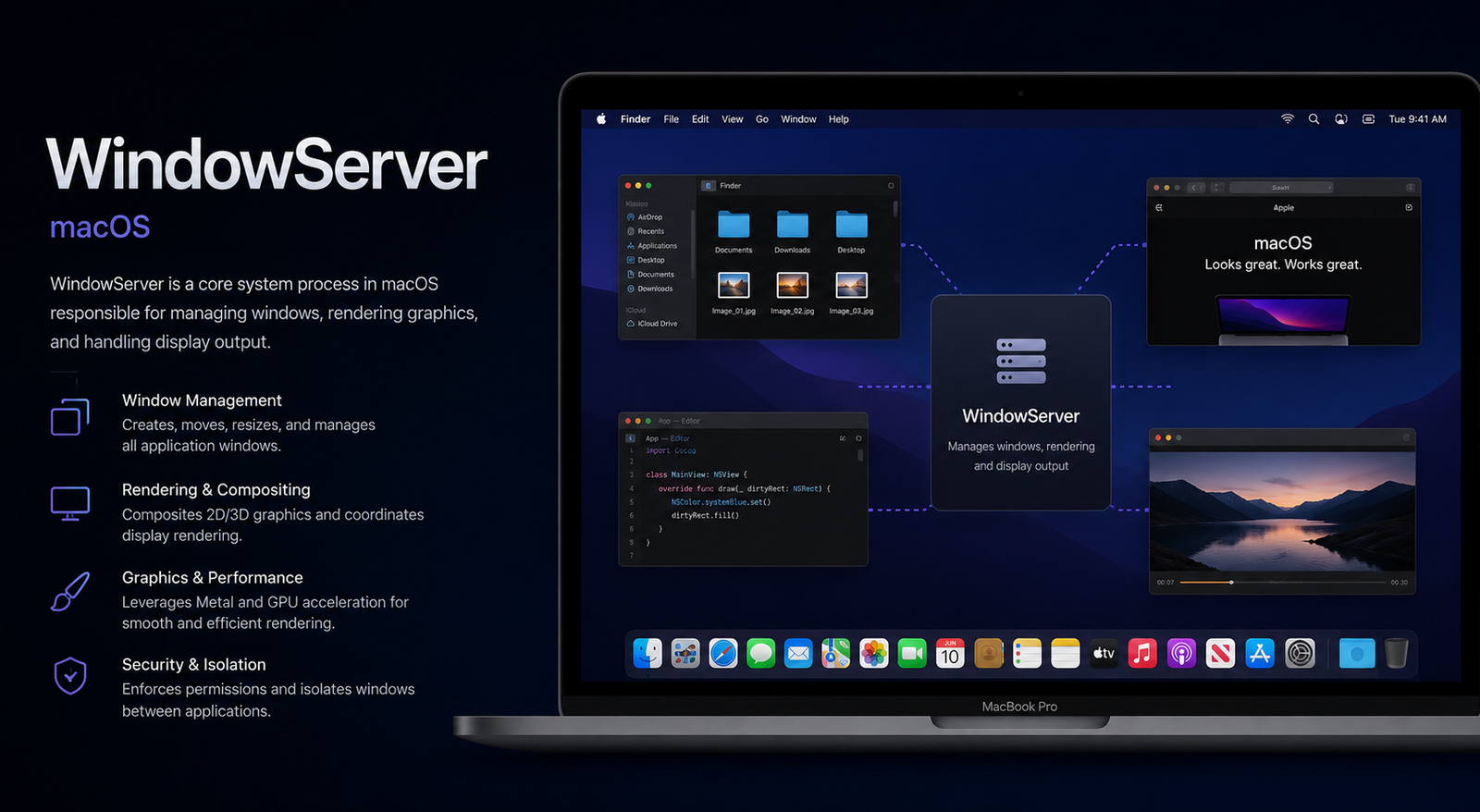
Windowserver mac. If you’ve ever opened Activity Monitor on your Mac, you’ve probably noticed a process called WindowServer running in the background. Many users become concerned when they see it consuming a large amount of CPU or memory, especially when their Mac starts slowing down or the fans become unusually loud. The good news is that WindowServer isn’t malware or an unnecessary application. It’s actually one of the most important system processes in macOS. WindowServer Mac
Understanding how WindowServer works can help you determine whether its resource usage is normal or if there’s a problem that needs attention. While seeing high CPU usage can be alarming, it often has a simple explanation, such as having too many windows open, using multiple displays, or running graphics-intensive applications.
In this guide, we’ll explain everything you need to know about WindowServer on Mac, why it sometimes uses excessive system resources, and the most effective ways to reduce its CPU and memory usage without affecting your Mac’s performance. WindowServer Mac
What Is WindowServer Mac?
WindowServer is a core macOS system process responsible for displaying everything you see on your screen. Every window, icon, menu, animation, notification, and visual effect passes through WindowServer before appearing on your display. In simple terms, it acts as the bridge between applications and your screen. WindowServer Mac
Whenever you open Safari, Finder, Mail, or any other application, WindowServer manages how those windows are displayed. It also handles transparency effects, shadows, animations, Mission Control, Spaces, and desktop transitions. Without WindowServer, your Mac wouldn’t be able to display a usable graphical interface.
Because WindowServer is constantly working behind the scenes, it’s perfectly normal to see it running all the time. The amount of CPU and memory it uses depends entirely on what you’re doing. Light browsing and document editing require very little processing power, while gaming, video editing, or connecting multiple monitors naturally increase its workload. WindowServer Mac
Why Does WindowServer Use High CPU?
High CPU usage from WindowServer isn’t always a sign of a problem. In many situations, it’s simply responding to the workload you’ve given your Mac. However, when the CPU usage stays unusually high even while you’re doing very little, it’s worth investigating further. WindowServer Mac
One of the most common reasons is having too many windows open at the same time. Every active window requires WindowServer to continuously manage its position, appearance, and updates. If you’re someone who keeps dozens of browser tabs, Finder windows, and applications open simultaneously, WindowServer has significantly more work to do.
Another major factor is visual effects. Features like transparency, dynamic wallpapers, desktop widgets, animated wallpapers, and accessibility effects require constant rendering. These visual enhancements make macOS look polished but also increase the workload on WindowServer. Older Macs with less powerful graphics hardware may notice this impact more than newer models. WindowServer Mac
Common Causes of High WindowServer Memory Usage
Besides CPU usage, many users notice WindowServer consuming several gigabytes of RAM. This isn’t necessarily a memory leak because macOS intelligently uses available RAM to improve performance. However, there are situations where memory usage becomes excessive.
Running multiple external displays is one of the biggest contributors. Every connected monitor requires WindowServer to render another complete desktop environment. Higher resolutions like 4K or 5K require even more graphical resources, increasing both memory and CPU usage. windowserver mac
Applications that frequently update their interface can also contribute to higher memory consumption. Video editors, design software, stock market dashboards, communication apps, and web browsers with many animated tabs constantly send graphical updates to WindowServer.
Occasionally, poorly optimized third-party applications may trigger abnormal WindowServer behavior. If an app has graphical bugs or continuously redraws its interface, WindowServer has to keep processing those requests, leading to unusually high resource usage until the application is closed or updated. windowserver mac
How to Check WindowServer Usage
The easiest way to monitor WindowServer is through Activity Monitor. This built-in macOS utility provides detailed information about CPU, memory, energy usage, and disk activity for every running process.
Open Spotlight Search by pressing Command + Space, type Activity Monitor, and launch it. Under the CPU tab, search for WindowServer. Here you’ll see the percentage of CPU currently being used. You can also switch to the Memory tab to check how much RAM it’s consuming. windowserver mac
It’s important to interpret these numbers correctly. Short spikes in CPU usage are completely normal when opening applications, switching desktops, or resizing windows. The real concern arises when WindowServer consistently remains at very high usage levels while your Mac is mostly idle.
How to Reduce WindowServer CPU Usage
If WindowServer is consuming excessive resources, there are several practical solutions that often resolve the issue without requiring advanced technical knowledge. windowserver mac
The first step is to reduce the number of open windows. Closing applications you’re no longer using immediately decreases the amount of graphical work WindowServer needs to perform. Even minimizing unused windows can help in some cases.
Restarting your Mac is another surprisingly effective solution. Temporary software glitches, background processes, and graphical caching issues can sometimes cause WindowServer to behave abnormally. A simple restart clears these temporary problems and restores normal performance.
Lowering visual effects can also make a noticeable difference. Navigate to System Settings, then Accessibility and Display settings, where you can reduce transparency and motion effects. Disabling unnecessary animations decreases the rendering workload handled by WindowServer, particularly on older Mac models.
Fixes for Persistent WindowServer Problems
If the problem continues after basic troubleshooting, additional steps may be necessary. Start by checking whether any applications consistently trigger high CPU usage. Open each app individually while monitoring Activity Monitor to identify potential offenders.
Updating macOS is another important step. Apple regularly releases performance improvements, security patches, and bug fixes that address system processes like WindowServer. Running the latest compatible version of macOS ensures you’re benefiting from these optimizations. windowserver mac
You should also update third-party applications, especially browsers, design software, and productivity tools. Developers frequently fix graphical bugs that could otherwise place unnecessary strain on WindowServer.
In rare cases, resetting certain system settings or booting your Mac into Safe Mode can help identify whether startup applications or extensions are causing the issue. Safe Mode loads only essential macOS components, making it easier to isolate software conflicts.
Does High WindowServer Usage Mean Your Mac Is Infected?
Many users worry that seeing WindowServer consume a large amount of CPU indicates malware or a virus. Fortunately, this is almost never the case. WindowServer is an official macOS process developed by Apple and is essential for the operating system to function properly. windowserver mac
That said, malicious software can indirectly affect WindowServer by forcing excessive graphical activity. Fake browser pop-ups, cryptocurrency mining malware, or poorly designed adware may increase the workload by generating constant interface updates.
If you suspect malware, look for other symptoms such as unknown applications, unexpected browser redirects, frequent advertisements, or unfamiliar login items. Running a reputable Mac security scanner and removing suspicious software is a good precaution, although WindowServer itself is not the source of the infection.
When Should You Be Concerned About WindowServer?
In most situations, occasional spikes in CPU or memory usage are perfectly normal. Activities like editing videos, playing games, connecting multiple monitors, or opening dozens of browser tabs naturally require more graphical processing. windowserver mac
However, persistent high usage while your Mac is sitting idle deserves attention. If WindowServer regularly consumes over 50–70% CPU with only a few applications open, there’s likely an underlying issue involving software conflicts, graphical bugs, or system settings.
Pay attention to additional warning signs such as overheating, rapidly draining battery life, constantly running fans, or noticeable interface lag. These symptoms suggest that troubleshooting steps should be taken sooner rather than later to restore smooth performance.
Tips to Keep WindowServer Running Efficiently
Maintaining good system habits can significantly reduce the chances of WindowServer consuming excessive resources. Avoid leaving dozens of unnecessary applications open for extended periods, especially those that constantly refresh their interface. windowserver mac
Keep your desktop organized by reducing the number of files stored directly on it. Every desktop item must be rendered by WindowServer, and a cluttered desktop can slightly increase graphical workload over time.
Regularly update macOS and your installed applications, restart your Mac occasionally, and disconnect external monitors when they’re not needed. These small habits help maintain consistent performance while minimizing unnecessary stress on WindowServer.
If you frequently work with graphics-intensive software, consider monitoring Activity Monitor every so often. This allows you to quickly identify applications that consistently generate abnormal WindowServer activity before they impact your overall workflow.
Conclusion
WindowServer is one of the most important background processes in macOS, responsible for displaying everything you interact with on your screen. While seeing high CPU or memory usage may initially seem alarming, it’s often a normal response to demanding graphical tasks such as multitasking, using multiple monitors, or running resource-heavy applications.
Understanding what influences WindowServer’s performance makes troubleshooting much easier. In many cases, simply closing unused applications, reducing visual effects, updating software, or restarting your Mac can dramatically lower CPU usage and restore smooth performance.
If high resource usage continues even when your Mac is idle, it’s worth investigating third-party applications or updating your system to rule out software conflicts. With proper maintenance and a few optimization techniques, WindowServer will continue performing its essential role efficiently, helping your Mac deliver the fast and polished experience that macOS is known for.